

Connect a booking page to a person's calendar
Bookings land in the person's Google Calendar and their events block the times. Works for teams too.
Two parts: each person connects their own Google Calendar once. Then you pick them on the booking page.
Part 1: Connect Google Calendar (each person does this themselves)
- Open Calendar and tap the gear in the top right. On the phone: View settings, then Google & subscription links.
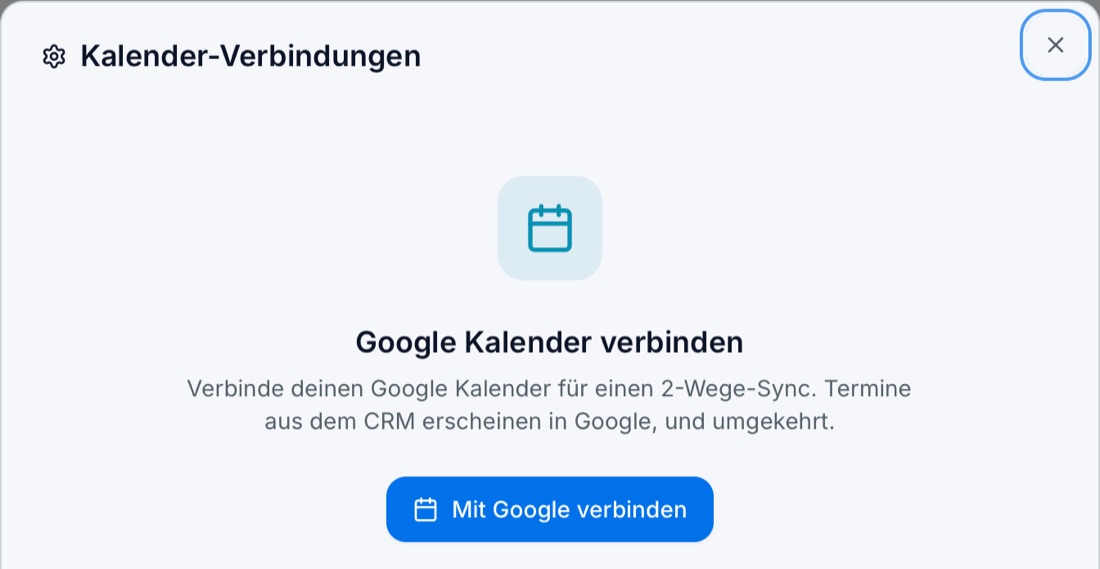
- Tap Connect with Google, choose your own Google account and agree. Everyone does this with their own login; you cannot do it for someone else.
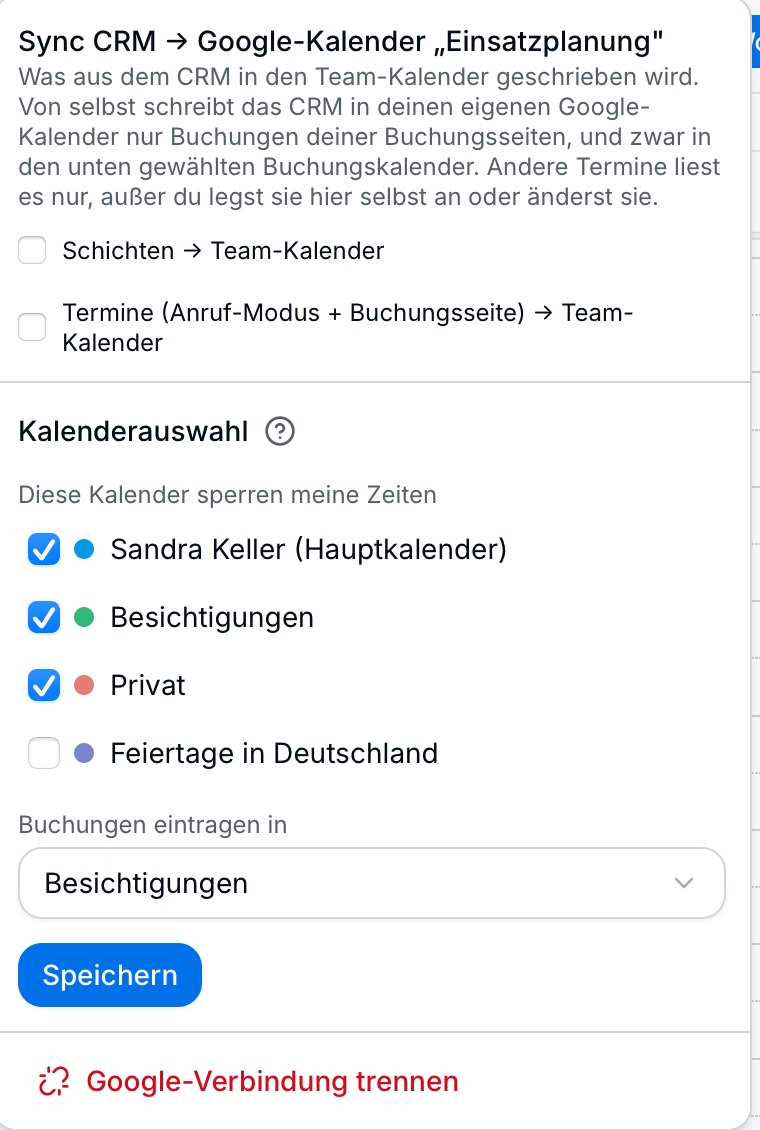
- In the same window tap Sync. Under Calendar selection, tick which calendars block your times (for example your main calendar and Private). Under Add bookings to, choose where new bookings go. Save: it applies within 10 minutes. Events marked "Free" in Google do not block.
Part 2: Pick the person on the booking page (owner or admin)
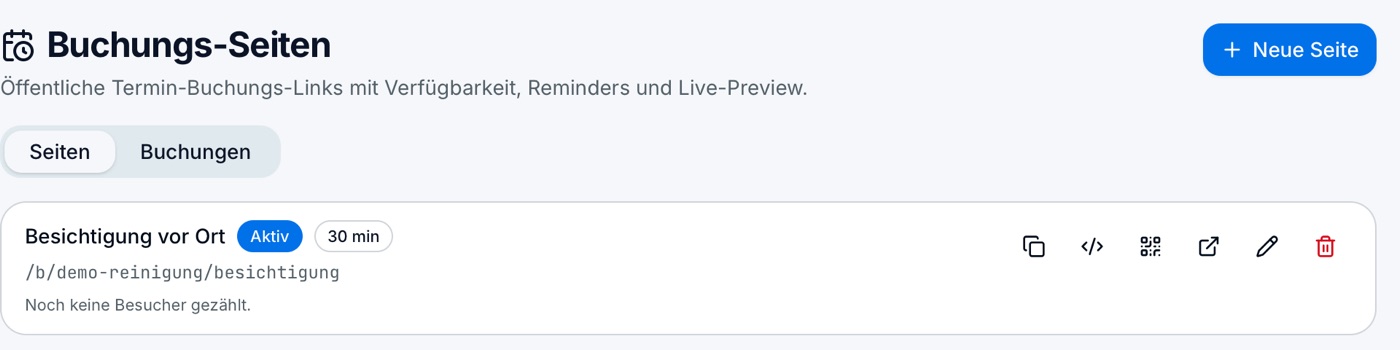
- In the sidebar under Operations, open Booking page and tap the pencil next to the page. If the entry is missing, use the module search (on the phone the button at the bottom centre).
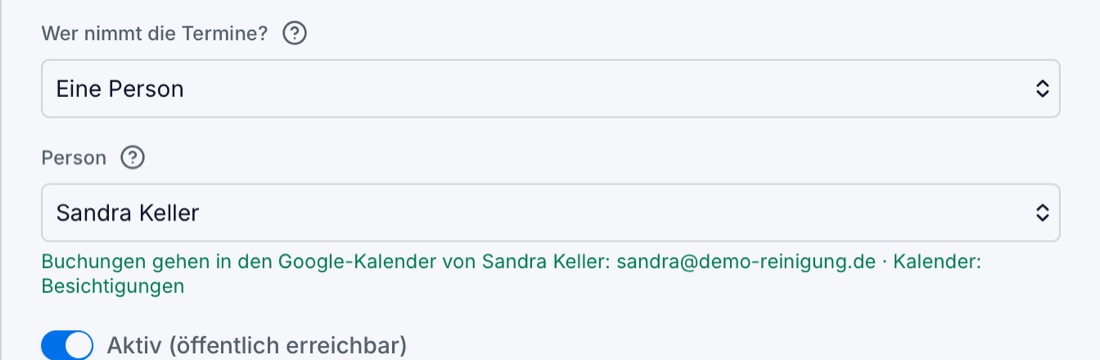
- Under Who takes the appointments? choose "One person", then the name under Person. Right below it says where bookings go. Green means: into this person's Google Calendar, in the chosen booking calendar.
- Save. From now on, this person's busy times block the booking page and new bookings land in their calendar.
Several people: team
Under Who takes the appointments? choose a team option (spread evenly, by order, or all together) and add people with + Name. Each person shows whether their calendar is connected. You can set a daily limit per person.
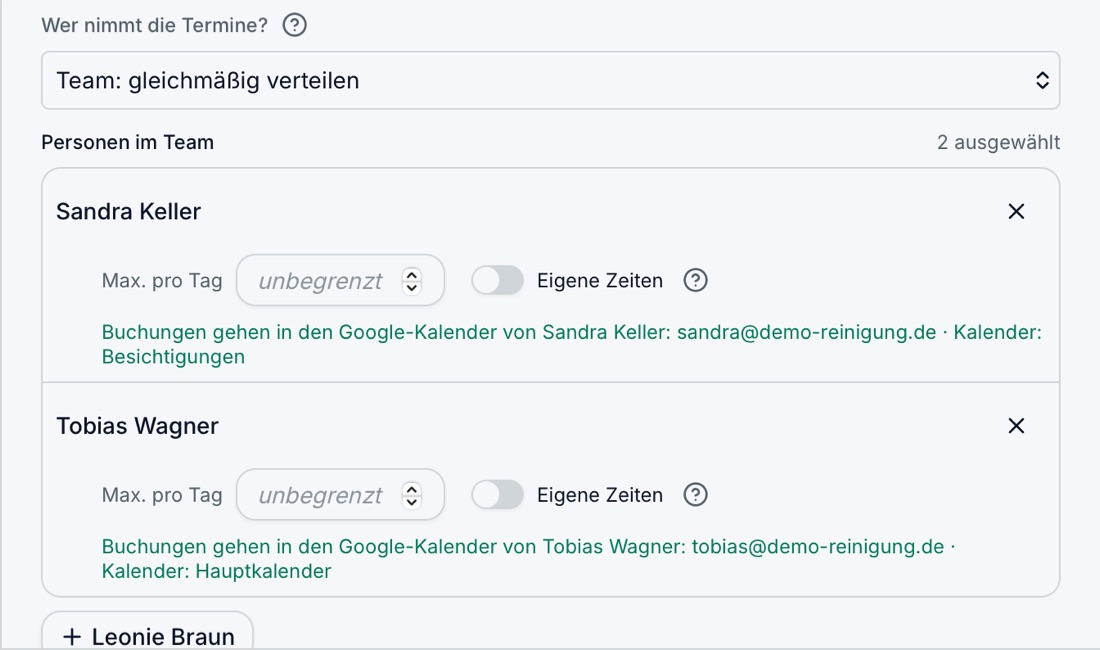
Grey instead of green?
- "has not connected Google": the person does part 1.
- "has no CRM login": invite them under Team first.
- "connection interrupted": the person reconnects Google in the calendar.
Until then, bookings land in the team calendar "Einsatzplanung", so nothing gets lost.